To block apps at certain times on iPhone, turn on Downtime in Settings > Screen Time and set a start and end time; only the apps you allow stay available. On your own phone, Downtime is easy to skip. For work hours, study time or bedtime that hold, schedule blocks for a chosen group of apps, with strict schedules that can't be switched off while they run.
Below are the Downtime steps, the reason Focus modes don't do this job, how scheduled blocks work in Stillock, and ready-made schedules you can copy.
How to block apps at certain times with Downtime
Downtime is Screen Time's built-in schedule. While it runs, only the apps on your Always Allowed list stay available. It is free and already on your iPhone and iPad.
- Open Settings > Screen Time and tap Downtime.
- Turn on Scheduled.
- Choose Every Day, or Customize Days to set different hours for each day.
- Set the start and end times, for example 10:00 PM to 7:00 AM.
- Go back to Screen Time, tap Always Allowed and choose the apps you need during Downtime.
If you set a Screen Time passcode, Downtime also offers a "Block at Downtime" switch, which makes the schedule a block rather than a reminder.
Downtime is not the same as an App Limit. An App Limit gives an app an amount of time per day, whenever you use it. Downtime sets hours of the day, whatever you have used so far. For "no social apps after 10 p.m.", Downtime is the right tool.
Apple's guide to setting schedules and limits in Screen Time has the official steps. iOS 27 (September 2026) added a separate Screen Time Schedule and Time Allowances for parents managing a child's device (AppleInsider, June 8, 2026). The steps above are for setting Downtime on your own iPhone.
Where Downtime falls short
Downtime does one thing well: it switches most of your phone off for a stretch of the day. For self-control, it has three gaps.
- It is all or nothing. Downtime blocks everything except your Always Allowed apps, on one schedule. You can't block social apps during work and games only at night.
- You hold the passcode. If you set the Screen Time passcode yourself, you can type it and get back in. Our guide to Screen Time's "Ignore Limit" button explains why limits you control yourself rarely hold.
- It doesn't care what you are doing. Downtime follows the clock, not whether you are actually working, studying or in bed.
Why Focus modes don't block apps
A Focus, such as Work, Sleep, Personal or one you create, filters notifications and can hide Home Screen pages. It does not stop an app from opening. You can still find the app in the App Library or Search and use it as normal. That is why turning on a Work Focus doesn't keep you off Instagram: it only keeps Instagram from buzzing. Apple's guide to setting up a Focus shows what a Focus can filter.
Focus modes are still useful, because many people already turn them on at the right moments, by hand or on a schedule. The trick is to make a Focus trigger a real block.
How Stillock's Focus link ties a block group to a Focus
Focus link (Pro) blocks a group automatically while an iOS Focus is on. You set it up in iOS Settings, not in Stillock: open Settings > Focus, pick the Focus, tap Focus Filters, choose Stillock and pick a block group; the filter is called "Block apps during this Focus". Link your Work Focus to a group of social and video apps, and those apps are blocked whenever Work is on. When the Focus ends, the block ends with it. If iOS offers Focus Filters for your Sleep Focus, linking it to a group means you set your bedtime in one place.
Focus link is a Pro feature, and it stops working if Pro ends. It is also only as firm as your Focus: if you switch the Focus off in Control Center, the block ends with it. Use it for moments that follow what you are doing, and a schedule for hours that should hold no matter what.
Scheduled blocks in Stillock: work hours, bedtime, study time
Stillock's schedules (Pro) block a group of apps automatically every day, on the days of the week you choose. You set the hours once, and the block starts on its own.
- On the Blocks tab, create a block group with the apps, categories and websites you want gone at that time.
- Tap the plus button and choose New schedule. Give it a name, such as "Work hours" or "Bedtime", set Starts and Ends, and pick the Days. Overnight windows work: a bedtime schedule from 10 p.m. to 7 a.m. shows "Ends the next morning."
- Turn on Strict if you want the schedule to hold; its own description reads "Can't be switched off or edited while it's running."
- Under Block, pick the group, then tap Create schedule.
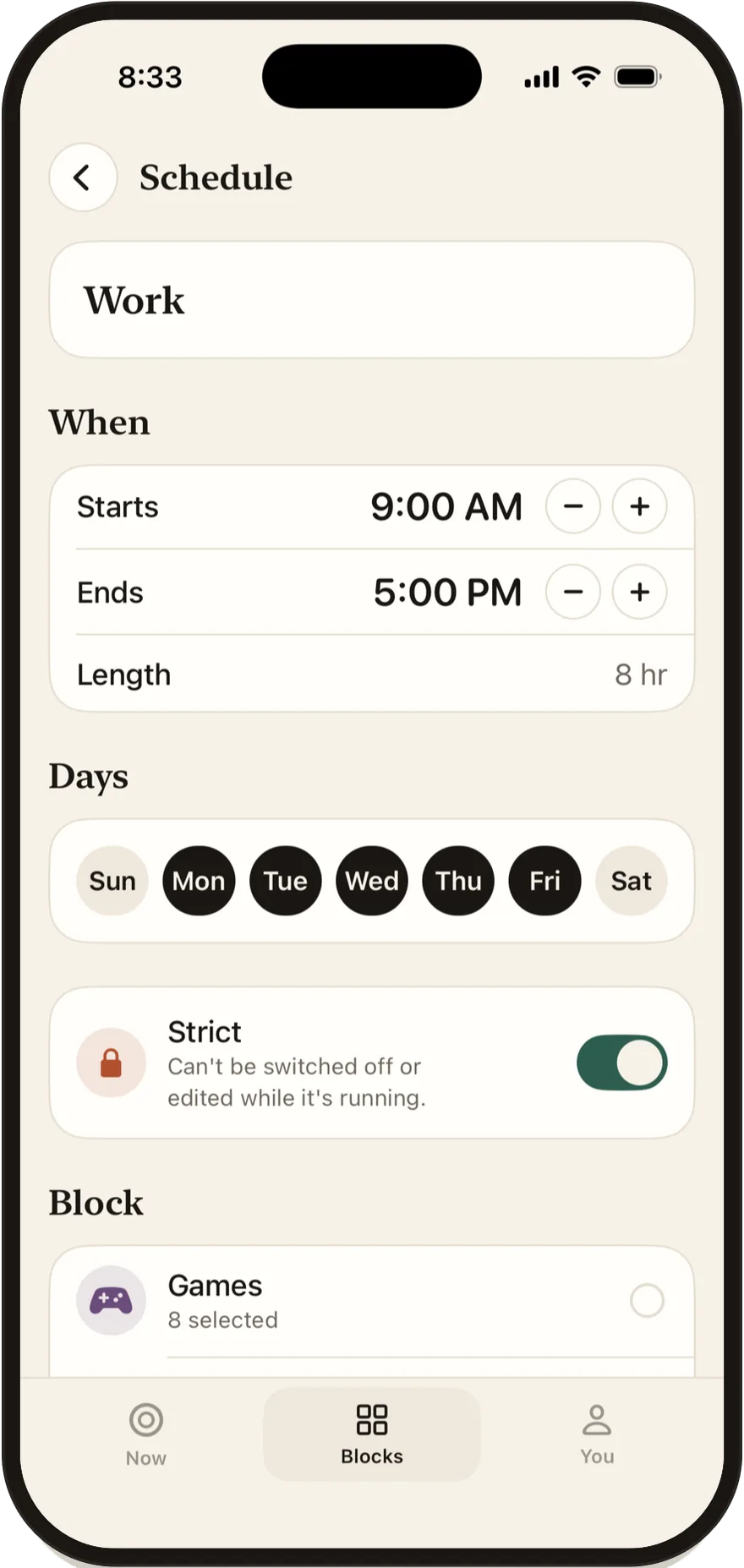

A few rules keep this predictable:
- Every schedule ends on its own when its time is up.
- "5 more minutes" is not available during a strict schedule. During a normal schedule, the free version gives you one a day, and Pro lets you choose from none to five.
- If your Pro subscription ends, schedules pause. Nothing is deleted, and they come back when you subscribe again.
- Pro costs $4.99 a month or $24.99 a year in the US, and the yearly plan starts with a 7-day free trial.
Ready-made schedules you can copy
These are starting points, not rules. Use them in Stillock or adapt them for Downtime.
| Schedule | When | Days | What to block | Strict? |
|---|---|---|---|---|
| Deep work | 9 a.m. to 12 p.m. | Monday to Friday | Social, news, video, games | Yes |
| Workday | 9 a.m. to 5 p.m. | Monday to Friday | Social and video | Your choice |
| Bedtime | 10 p.m. to 7 a.m. | Every day | Everything you scroll in bed | Yes |
| Slow morning | 7 a.m. to 8 a.m. | Every day | Social, news, email | Your choice |
| Exam season | 4 p.m. to 8 p.m. | Monday to Friday | Social, games, video | Yes |
| Weekend study | 10 a.m. to 1 p.m. | Saturday and Sunday | Social, games, video | Your choice |
Some notes on making them work:
- Deep work protects your best hours. Three strict hours you keep are worth more than an all-day block you keep switching off.
- Bedtime works best strict, because the evening version of you is the one who negotiates. Leave your alarm and messaging apps out of the group.
- Exam season is a good time to stack schedules: weekday afternoons plus weekend mornings. Turn the schedules off when exams end.
- Inside a block, a Pomodoro app blocker adds focus cycles with short breaks, so a long study afternoon doesn't feel like one wall.
Different apps at different times with block groups
Downtime has one list of allowed apps. Stillock uses block groups, so each kind of distraction can have its own hours. The free version includes one block group; Pro adds more.
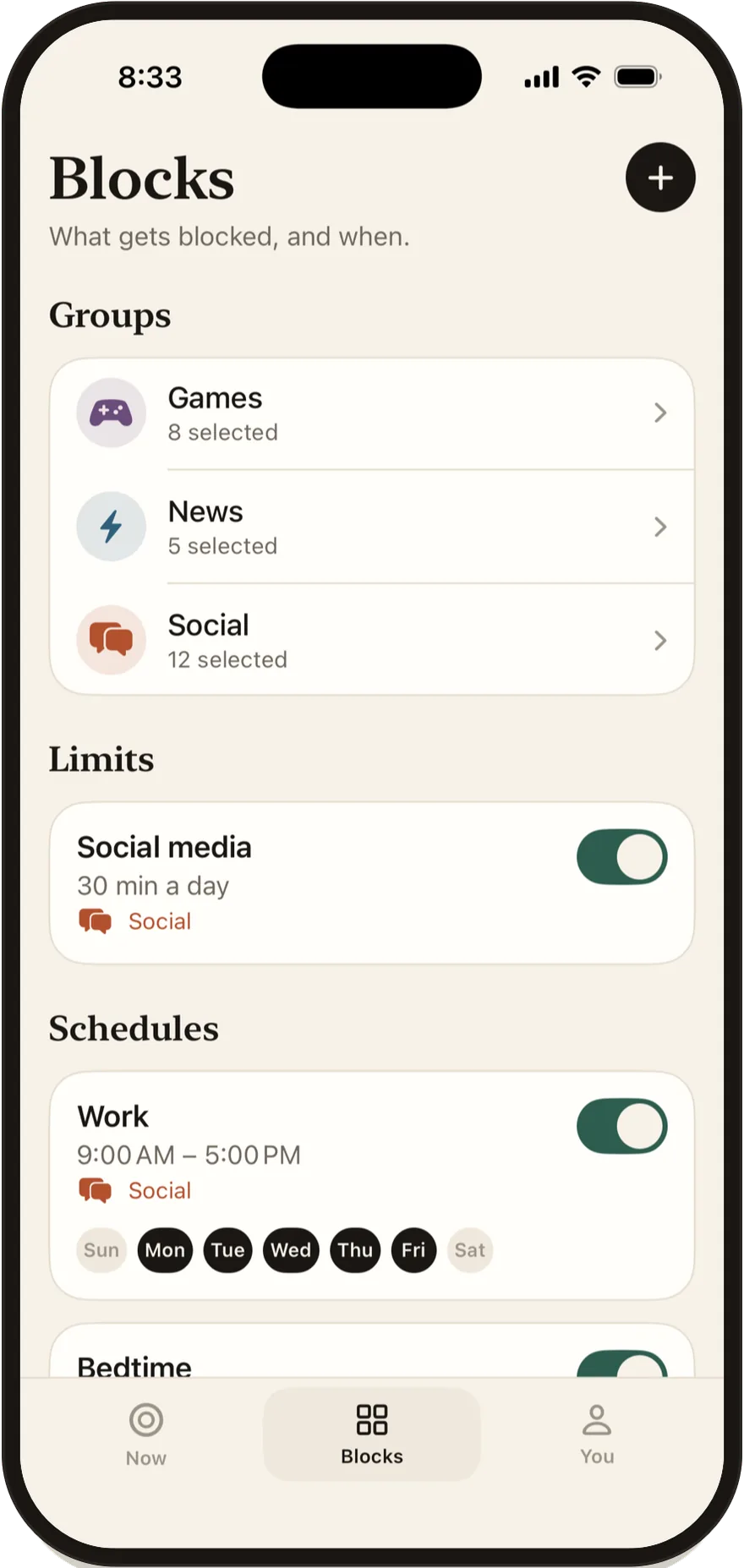
A typical setup looks like this:
- Social is blocked during work hours and at bedtime, with a 30-minute daily limit for the evening.
- Games are blocked on school nights only.
- News is blocked for the first hour of the day.
One group can have several schedules and a daily limit at the same time, and the blocks add up: an app stays blocked while any of them blocks it.
Each device keeps its own setup, since Stillock has no account. If you study on an iPad, set your schedules up there too. For the full set of native and app-based methods, see our guide to blocking apps on iPhone for yourself, and for how blockers compare, our overview of app blockers for iPhone.
Downtime, Focus or a scheduled block: which to use
Each tool answers a different need. This table puts them side by side.
| Tool | What it does | Blocks apps? | Can you skip it? | Cost |
|---|---|---|---|---|
| Downtime | Blocks everything except Always Allowed apps on set hours | Yes | Yes, unless someone else holds the passcode | Free |
| Focus mode | Filters notifications and can hide Home Screen pages | No | Not a block | Free |
| Stillock schedule | Blocks one block group on set hours and days | Yes, the apps in the group | A normal schedule, yes; a strict one, not while it runs | Pro |
| Stillock Focus link | Blocks a group while a Focus is on | Yes, the apps in the group | Yes, by turning the Focus off | Pro |
| Stillock focus session | Blocks a group for 5 minutes to 3 hours, started by you | Yes, the apps in the group | With strict mode or Tag to unlock, not in the app | Free (strict mode and Tag to unlock are Pro) |
A simple rule: use a schedule for the hours that repeat every week, Focus link for moments that follow your Focus rather than the clock, and a focus session for the one-off hours in between, like an unplanned evening of work. If you only need one of the three, a strict bedtime schedule is a good first step.
Limitation: A schedule blocks only the apps, categories and websites in its group, and iOS decides what can be blocked; a few system apps can't be. iOS also always lets you remove Stillock's blocks by turning off its Screen Time access in Settings or by deleting the app, so a strict schedule is strong friction, not a lock.
FAQ
Will my alarms still go off while apps are blocked?
Stillock blocks only the apps, categories and websites in your block group, so anything you leave out keeps working. Keep the Clock app out of your groups if you rely on its alarms.
Can people still call and text me during a scheduled block?
Stillock blocks the apps in your group, so leave Phone, Messages and any other app people use to reach you out of every group. Stillock's terms also advise never blocking apps you might need in an emergency, such as messaging, maps, health or sign-in apps.
What happens to scheduled blocks when I travel to another time zone?
Schedules use your iPhone's local time, so a 10 p.m. bedtime block is meant to start at 10 p.m. wherever you are. We haven't tested a schedule that is running during a time-zone change, so after a flight open the Blocks tab and check that today's schedules show the hours you expect.
Can I block apps at certain times for free?
Yes. Downtime in Screen Time is free and built into iOS. In Stillock, schedules are a Pro feature; the free version lets you start unlimited focus sessions by hand.
Can I skip a scheduled block once it has started?
A normal Stillock schedule can be switched off, and "5 more minutes" works if you have unlocks left. A strict schedule can't be switched off or edited while it runs, and "5 more minutes" is not available during it.