To block an app on your own iPhone, go to Settings > Screen Time > App Limits, give the app a 1-minute limit and turn on Block at End of Limit. Then ask someone you trust to set the Screen Time passcode, so you can't lift the block on a whim. For a block that runs for a set time, use an app blocker session that can't be ended early.
The short answer: five ways to block apps on your iPhone
There are five ways to do it, from gentle to strict. The first four are free and built into iOS; the fifth uses an app.
- A 1-minute App Limit with Block at End of Limit, for apps you want gone all day.
- Downtime, for evenings and nights.
- A passcode someone else holds, so you can't undo the first two yourself.
- Closing the loopholes, such as deleting the blocking app or using the website instead.
- A timed block session in an app blocker, for work or study.
The Screen Time steps below match iOS 18 and iOS 26. Apple's current iPhone User Guide page for these settings is titled "Set Screen Time Schedules and Time Allowances in Screen Time on iPhone" (Apple Support, checked November 5, 2026), so on iOS 27 some labels may differ from the ones here.
Method 1: a 1-minute App Limit with Block at End of Limit
An App Limit is a daily time budget for an app, a category or a website. Set it to 1 minute, the shortest limit iOS allows, and it works almost like a block.
- Open Settings > Screen Time. If Screen Time is off, turn it on first.
- Tap App Limits, turn on App Limits if you see the switch, then tap Add Limit.
- Pick the apps or categories to block. You can open a category, such as Social, to choose single apps, and add websites at the bottom of the list. Tap Next.
- Set the time to 0 hours and 1 minute.
- Turn on Block at End of Limit, then tap Add.
Once the minute is used up, iOS covers the app with a Time Limit screen. Without a Screen Time passcode, that screen offers Ignore Limit, which lets you carry on. Block at End of Limit only has teeth once a passcode is set, and on some versions the switch doesn't appear until you set one. That is what Method 3 is for.
Method 2: Downtime on a schedule
Downtime blocks every app except the ones you allow, on a schedule. It suits bedtime better than work hours, because it's all or nothing.
- Open Settings > Screen Time > Downtime.
- Turn on Scheduled, choose Every Day or Customize Days, and set the start and end times.
- Go back to Screen Time > Always Allowed and keep only the apps you need during Downtime, such as Phone, Messages and Maps.
- If you have a Screen Time passcode, turn on Block at Downtime.
Like App Limits, Downtime on your own iPhone can be ignored unless a passcode you don't know protects it. For more ways to time your blocks, such as work hours only on weekdays, see how to block apps at certain times on iPhone.
Method 3: let someone else hold the Screen Time passcode
This is the step that turns the first two methods from reminders into blocks. The idea is simple: you can't type a passcode you never saw.
- Open Settings > Screen Time and tap Lock Screen Time Settings, or Change Screen Time Passcode if you already have one.
- Hand your iPhone to a friend, partner or family member and let them enter a 4-digit passcode you don't see.
- Go back to Methods 1 and 2 and make sure Block at End of Limit and Block at Downtime are on.
There are two catches. If you know your Apple Account password, iOS usually lets you reset a forgotten Screen Time passcode with Forgot Passcode, so treat this as strong friction, not a vault. And you'll need the other person every time you want to change a setting.
There is also a newer reason this method matters. Freedom's support documentation reports that on iOS 26.4 or later, once a Screen Time passcode is set, it is required to turn off Screen Time access for any app (checked November 5, 2026). That means an app blocker can't be quietly switched off in Settings without the passcode, which makes Method 5 much firmer.
Method 4: close the loopholes
Most self-set blocks fail through a side door: deleting the app that does the blocking, reinstalling an app in a weak moment, or opening the website instead. Content & Privacy Restrictions can close these.
- Open Settings > Screen Time > Content & Privacy Restrictions and turn it on.
- Tap iTunes & App Store Purchases. Set Deleting Apps to Don't Allow, so a blocking app can't be deleted to lift its blocks.
- On the same screen, set Installing Apps to Don't Allow if you deleted an app and don't want to reinstall it on impulse. Switch it back when you need to install something.
- For the website version of an app, add the site to the App Limit from Method 1, or add it under Never Allow in the web content settings of Content & Privacy Restrictions.
These settings hold only if the passcode isn't yours, so pair this method with Method 3.
Method 5: a timed block session that can't end early
Screen Time has no way to block a chosen set of apps for the next hour, starting now. An app blocker can. Here is how it works in Stillock, our app blocker for iPhone and iPad:
- Install Stillock and allow it to use Screen Time when iOS asks. There's no account to create.
- Make a block group with the apps, categories and websites you want gone.
- Choose a length from 5 minutes to 3 hours, or use Pomodoro to focus in cycles with short breaks.
- With Pro, turn on strict mode so the session can't be ended early in the app, or Tag to unlock so only a scan of your registered NFC tag ends it early.
- Start the session. The countdown runs on your Lock Screen and in the Dynamic Island.
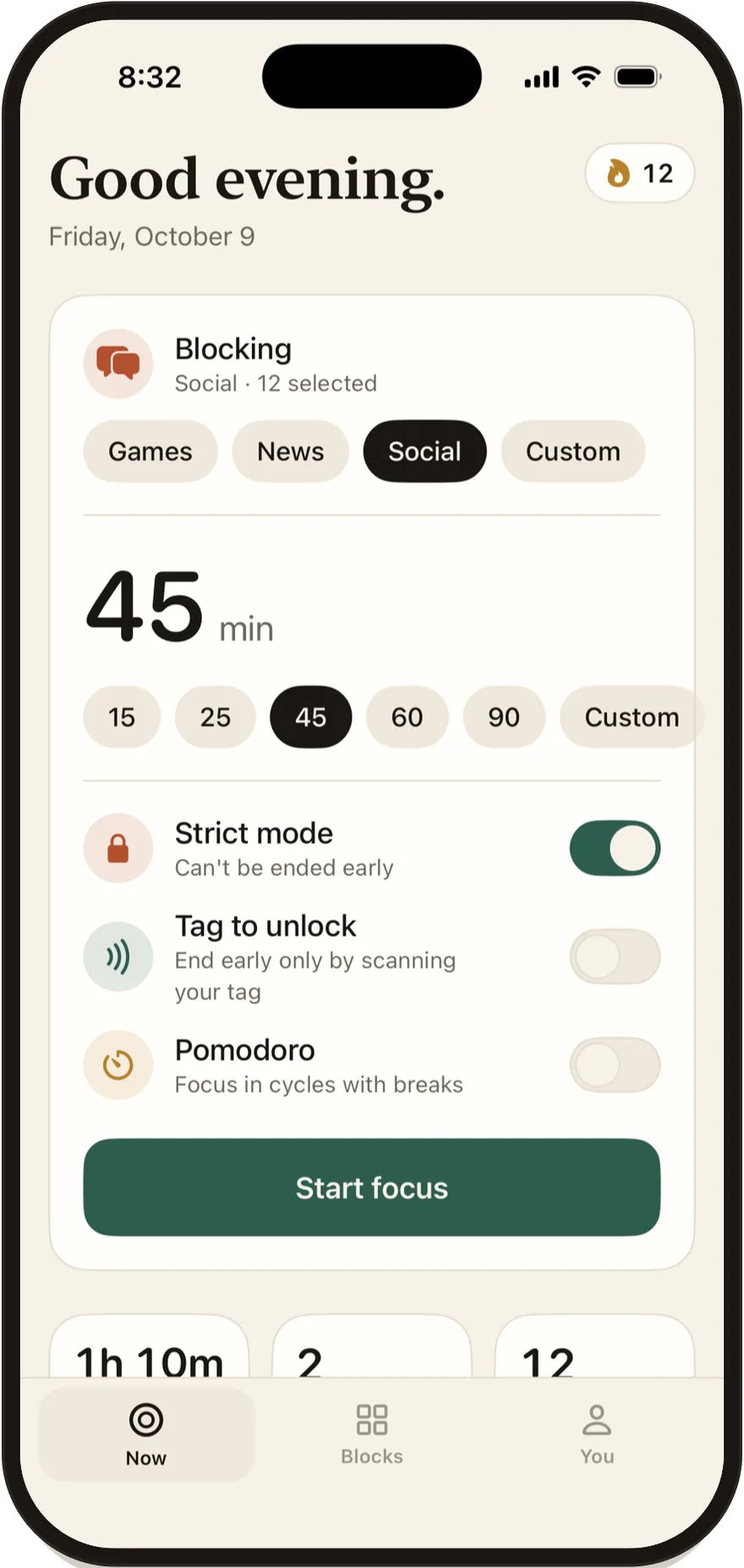
Every session ends on its own when its time is up, even if you lose your tag. During strict or tag-locked sessions, the "5 more minutes" option isn't available. The free plan includes unlimited sessions with one block group; strict mode, Tag to unlock, schedules and daily limits are part of Pro, which costs $4.99 a month or $24.99 a year in the US, with a 7-day free trial on the yearly plan.

Pair a strict session with Methods 3 and 4 and ending it early takes real effort, not a tap. For how far that strictness goes, and where it stops, read how strict an app blocker can be on iPhone.
Why limits you set for yourself fail
It isn't a lack of willpower. Screen Time's limits on your own iPhone are built to bend:
- Ignore Limit is one tap away. When a limit runs out, you can pick One More Minute, Remind Me in 15 Minutes or Ignore Limit for Today.
- One More Minute doesn't go away. Even with Block at End of Limit on, people report the limit screen still offers a minute more, and an Apple Community thread on disabling "one more minute" asks for a way to turn it off.
- You know the passcode. If you set it, you can type it, and the block becomes a polite suggestion.
- You can change the rule. Raising a 1-minute limit to an hour takes seconds when the passcode is yours.
- There's no end point. A limit that runs every day with no finish line can feel like a rule to negotiate. A block with a clear end, like the next 45 minutes, can feel easier to keep.
Our guide to Screen Time's Ignore Limit button goes deeper on each of these. If your phone use feels out of your control in a way that worries you, it's worth talking to a doctor or counselor; an app blocker is a tool, not treatment.
Which method fits you
| Method | Best for | Cost | How easy it is to undo |
|---|---|---|---|
| 1-minute App Limit | One or two apps you want gone all day | Free | One tap, unless someone else holds the passcode |
| Downtime | Evenings and nights | Free | One tap, unless someone else holds the passcode |
| Someone else holds the passcode | Anyone who keeps tapping Ignore Limit | Free | You need the other person, or an Apple Account reset |
| Closing the loopholes | Pairing with any other method | Free | Needs the passcode |
| Timed session in Stillock | Work, study and other set stretches of time | Sessions are free; strict mode and Tag to unlock are in Pro | With strict mode on: wait it out, scan your tag, or turn off Stillock's Screen Time access in Settings |
Most people do best with a mix: Downtime for the night, a strict session for focused work, and a passcode held by someone else to keep both honest. Our guide to app blockers for iPhone compares the apps that can handle the session part.
Limitation: None of these methods is a lock you can't open. iOS always lets you turn off an app's Screen Time access in Settings or delete the app, which removes its blocks, and a Screen Time passcode can often be reset by whoever knows the Apple Account behind it. The goal is to make breaking your own rule slow and deliberate, not impossible.
FAQ
Can I block apps on my iPhone without Screen Time?
Not in a way that sticks. App blockers on the App Store, Stillock included, use Apple's Screen Time framework to do the blocking. The Require Face ID option in iOS 18 locks an app behind your face, which protects your privacy but won't stop you from opening it.
What is the shortest App Limit I can set on iPhone?
One minute. With Block at End of Limit turned on and a Screen Time passcode you don't know, a 1-minute limit works almost like a full block.
Does blocking an app on iPhone delete its data?
No. A blocked app stays installed with all its data; iOS only covers it with a shield screen until the limit, schedule or session ends.
How do I block an app on iPhone for a set amount of time?
Screen Time can't start a block for a set time from now, but an app blocker can. In Stillock you pick the apps and a length from 5 minutes to 3 hours, and with strict mode on, the session can't be ended early in the app.
How do I unblock an app I blocked myself?
In Screen Time, remove the app from its App Limit or turn off Downtime, which needs the passcode if one is set. In Stillock, a session ends when its time is up; a strict session can't be ended early in the app, and a tag-locked one ends early only when you scan your tag.