An iPhone app blocker puts a lock screen over the apps and websites you choose: during a focus session, on a schedule or after a daily limit. Almost all of them do this through Apple's Screen Time, so the real differences are how hard a block is to undo, what it costs, which devices it runs on and what happens to your data.
Disclosure: We make Stillock. Prices and features of other apps were checked on November 5, 2026 and link to their sources; tell us if something is out of date.
Best app blocker for iPhone: the short answer
There is no single best app blocker, because people slip in different ways. Pick the tool that matches how you break your own rules. The prices and features below were checked on November 5, 2026.
- You rarely override your limits: Apple's Screen Time is free, built in and may be all you need. Here is how to block apps on your iPhone for yourself with it.
- You keep tapping "Ignore Limit": choose a blocker with a mode that can't be ended early, such as Stillock's strict mode or Opal's Hard Mode, which is part of Opal's paid plan.
- You want a pause, not a wall: one sec and ScreenZen make you wait a moment before an app opens.
- You want the key in another room: Brick sells a $59 NFC device. Foqos (free) and Stillock Pro work with any NFC tag.
- You want to pay nothing: Screen Time, Foqos and ScreenZen are free. Stillock, Opal and one sec have free plans with limits.
How app blocking works on iPhone
Apple doesn't let one app control another directly. App blockers on the App Store use Apple's Screen Time framework, which developers know as FamilyControls. The first time you open one, iOS asks whether it may use Screen Time, and you confirm with Face ID or your passcode.
After that, the blocker tells iOS which apps, categories and websites to restrict, and when. iOS does the blocking itself. When you open a blocked app, you see a shield screen instead of the app, and the app stays closed until the block ends or you unlock it in the way the blocker allows.
You pick the apps in Apple's own picker, not in a list the blocker builds. iOS passes your choices to the blocker as encrypted tokens, so in Stillock's case neither the app nor we can see which apps you block. Other blockers get the same kind of tokens, but what they collect around them differs, which is why the privacy labels in the comparison table below are worth reading.
Three things follow from this design:
- Blocks hold while the app is closed. iOS enforces them, so the blocker doesn't have to stay open.
- Every blocker has the same ceiling. No app can block more than Screen Time allows, and iOS keeps a few system apps from being blocked at all.
- Blockers share Screen Time's bugs. When Screen Time misbehaves after an iOS update, apps built on it can misbehave too.
What no iPhone app blocker can do
Every blocker, Stillock included, works inside limits Apple sets. Knowing them up front saves you from paying for a promise no app can keep.
- It can't stop you from removing it. iOS always lets you turn off an app's Screen Time access in Settings > Screen Time, or delete the app. Either step removes that app's blocks. Stillock says this in its own FAQ and terms.
- It can't turn a passcode you know into a lock. A Screen Time passcode adds friction only if someone else holds it.
- It can't block what iOS won't. A few system apps can't be blocked, and website blocks may not reach every browser in the same way.
- It can't follow you to your computer. A block on your iPhone does nothing on a laptop.
- It can't be free of bugs. After iOS 26.2, people reported app limits firing early in Apple's Community forums and on Apple's developer forums. Blockers built on Screen Time can run into the same problems.
One recent change helps. Freedom's support documentation reports that on iOS 26.4 or later, once a Screen Time passcode is set, it is required to turn off Screen Time access for any app. If a friend sets that passcode for you, switching off your blocker becomes a real decision instead of a reflex. You can close the other exit in Settings > Screen Time > Content & Privacy Restrictions > iTunes & App Store Purchases by setting Deleting Apps to Don't Allow.
Limitation: No app blocker on iPhone is impossible to get around, and any that claims to be is overselling. A good blocker removes the easy exits, such as a one-tap "Ignore Limit" button or an End button during a session, so that getting out takes a trip to Settings and a moment of honesty with yourself. Read more about how strict an app blocker can really be.
The five kinds of iPhone app blockers
Most apps mix several of these. Which kind fits the way you slip matters more than the brand.
Timed focus sessions
You choose a group of apps and a length, and they stay blocked until the timer runs out. Sessions suit work, study and anything with a clear start. Many apps pair them with work-and-break cycles; see how a Pomodoro app blocker works. In Stillock, a session can last from 5 minutes to 3 hours.
Schedules
These blocks switch on by themselves at set times, such as work hours or bedtime. They help most when the hard part is starting. Screen Time's Downtime is a simple schedule, and dedicated blockers add several schedules and stricter versions. Here is how to block apps at certain times on iPhone.
Daily limits
A daily limit is a time budget: for example 30 minutes of social media a day, after which the apps lock. Screen Time's App Limits work this way, and this is where self-control most often fails, because a limit you set for yourself comes with an "Ignore Limit" button. If that's your pattern, read why Screen Time's Ignore Limit undoes your limits and what to do about it.
Pauses and friction
These tools make you wait or breathe before an app opens instead of locking it. one sec works through a Shortcuts automation, and its App Store description says it "delays access" rather than blocking apps completely (App Store, checked November 5, 2026). ScreenZen shows a delay screen before apps open (App Store). A pause is gentle and can be enough for mild habits. If you catch yourself tapping through it without thinking, a hard block may suit you better; our one sec alternative page covers that trade-off.
Physical and NFC unlocks
You put the key somewhere else. Brick is a $59 NFC device (getbrick.com), and you need it to unbrick your phone (Brick FAQ); NBC Select reports 5 Emergency Unbricks per account for when you can't reach it (NBC Select review). Software blockers such as Foqos and Stillock skip the hardware and work with any NFC tag you register, so a sticker on the kitchen wall can be your key. The NFC app blocker guide covers tags and placement, and our Brick alternative page compares the costs.
Free app blockers for iPhone: what you get without paying
You can block apps on an iPhone without paying anything. Paying mostly changes how strict and how automatic your blocks can be. As checked on November 5, 2026:
- Apple Screen Time: free and built in, with App Limits, Downtime and Content & Privacy Restrictions. For adults, its weak spot is that your own limits can be ignored.
- Foqos: free and open source, with an optional tip jar. It locks sessions with any NFC tag or a QR code, its privacy label says "Data Not Collected", and it has 4.9 stars from about 5.7K ratings. It is iPhone only, English only and needs iOS 17.6 or later (App Store).
- ScreenZen: free with optional tips and built around a delay screen. It has 4.9 stars from about 53K ratings and runs on iPad (App Store).
- one sec and Opal: both have free plans. one sec's covers 1 app (App Store); Opal's covers 1 rule (pricing).
- Stillock Free: unlimited focus sessions with one block group, Pomodoro, challenges and a day streak.
Here is what Stillock's free plan and Stillock Pro include:
| Feature | Stillock Free | Stillock Pro |
|---|---|---|
| Focus sessions and Pomodoro | Unlimited | Unlimited |
| Block groups | One | More than one |
| Schedules and strict schedules | No | Yes |
| Daily limits | No | Yes |
| Strict mode and Tag to unlock | No | Yes |
| "5 more minutes" | One a day | You choose from none to five a day |
| Insights and Sunday recap | No | Yes |
| Price (US) | Free | $4.99 a month or $24.99 a year, with a 7-day free trial on the yearly plan |
If a free NFC unlock on an iPhone is all you want, Foqos is the honest answer. Stillock Pro earns its price when you also want schedules, daily limits, iPad support or one of its 16 languages.
App blocker comparison: Stillock, Screen Time, Opal, one sec, Brick and Foqos
All facts below were checked on November 5, 2026 against the linked App Store listings and vendor pages, with US prices. Apps change often, so check the source before you buy.
| App | Price (US) | How it blocks | Ending a block early | Devices | Privacy label | Languages |
|---|---|---|---|---|---|---|
| Stillock | Free; Pro $4.99/month or $24.99/year (App Store) | Sessions from 5 minutes to 3 hours, schedules, daily limits | Free: you can end a session. Pro: strict mode, or Tag to unlock with any NFC tag | iPhone and iPad, iOS 17 or later | Data Not Collected; no account | 16 |
| Apple Screen Time | Free, built into iOS (Apple Support) | App Limits, Downtime, Content & Privacy Restrictions | "Ignore Limit" on your own limits, unless someone else holds the passcode | iPhone, iPad and Mac | Part of iOS | Same as iOS |
| Opal | Free (1 rule); Pro $99.99/year, $19.99/month or $399 lifetime (pricing) | Blocking rules | Hard Mode, in the paid plan | "Only for iPhone" on the App Store; also Android and Mac | Data Used to Track You: Identifiers (App Store) | 10 |
| one sec | Free (1 app); Pro $6.99/month, $19.99/year or $99.99 lifetime (App Store) | A pause before the app opens, set up through a Shortcuts automation | Built to delay access, not to lock it | iPhone and iPad | Analytics, not linked to you | 31 |
| Brick | Brick $59, Brick Night $129, bundle $169; no subscription mentioned (getbrick.com) | Blocks chosen apps until you tap the Brick device | You need the device; 5 Emergency Unbricks per account (NBC Select) | iPhone only on the App Store; iOS 18+ and Android 12+ (FAQ) | Data linked to you, including contact info and identifiers (App Store) | English |
| Foqos | Free, open source, optional tips (App Store) | Sessions you lock with any NFC tag or a QR code (GitHub) | Scan the tag or code | iPhone only, iOS 17.6 or later | Data Not Collected | English |
Stillock isn't the best pick for everyone. If you need Android or a Mac, Opal and Brick cover more platforms. If you want the most languages, one sec offers 31. If you want a free NFC unlock on iPhone, Foqos costs nothing. If Opal's price is what bothers you, our Opal alternative page goes into detail. And if you mainly need to manage a child's device, Screen Time's Family Sharing tools are built for that; Stillock vs Screen Time explains what each one does.
How to choose an app blocker for iPhone
Six things decide it. Answer them honestly and the list of candidates gets short. The facts about other apps come from the table above.
- Do you tap "Ignore Limit"? If your Screen Time limits mostly hold, keep using them. If you dismiss them on reflex, you need a block without a dismiss button: a strict session, a strict schedule or a physical unlock.
- Do you need blocks to start on their own? A session starts when you press start. If your weak hours are predictable, such as late evenings, look for schedules and daily limits. In Stillock, those are part of Pro.
- Do you want something physical? An NFC unlock works because the key is somewhere you have to walk to. Brick sells the key as a $59 device; Foqos and Stillock let you use any NFC tag.
- Do you care about accounts and data? Read the App Store privacy label before you install. On November 5, 2026, the labels for Stillock and Foqos said "Data Not Collected", while Opal's listed "Data Used to Track You: Identifiers". Stillock also needs no account.
- Do you use an iPad? Opal, Brick and Foqos are iPhone only on the App Store, while Stillock, one sec and ScreenZen run on iPad. Tag to unlock needs an NFC reader, which iPads don't have, so a tag can only be registered and used on an iPhone; each device runs its own sessions.
- What's your budget? Screen Time, Foqos and ScreenZen are free. Per year, one sec Pro costs $19.99, Stillock Pro $24.99 and Opal Pro $99.99. Brick is a one-time $59 device.
Set up your first block in Stillock
Stillock is free to download and needs no account. Three steps get you a working block.
Step 1: Install Stillock and allow Screen Time access
Download Stillock from the App Store and open it. When iOS asks, allow Stillock to use Screen Time. This permission is what lets it block apps, and you can turn it off later in Settings > Screen Time.

Step 2: Make a block group
Choose the apps, app categories and websites that pull you away, using Apple's picker. Leave out anything you might need in an emergency, such as messaging, maps, health or sign-in apps. The free plan gives you one block group; Pro lets you make more, for example one for work and one for bedtime.
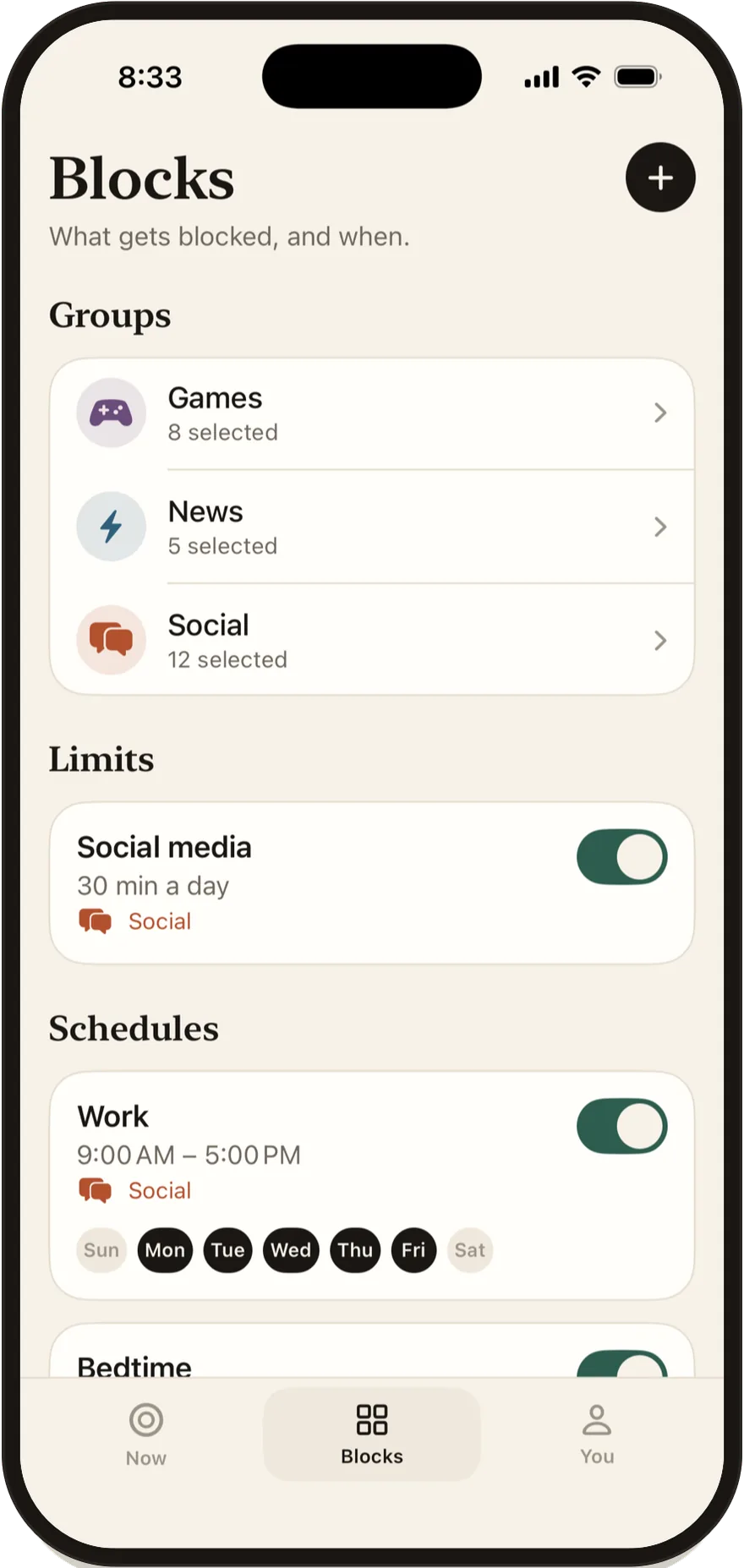
Step 3: Start a focus session
Pick a length from 5 minutes to 3 hours, or turn on Pomodoro to focus in cycles with short breaks, then start. With Pro, turn on strict mode so the session can't be ended early in the app, or Tag to unlock so only a scan of your registered NFC tag ends it early. Either way, every session ends on its own when its time is up, even if you lose your tag.
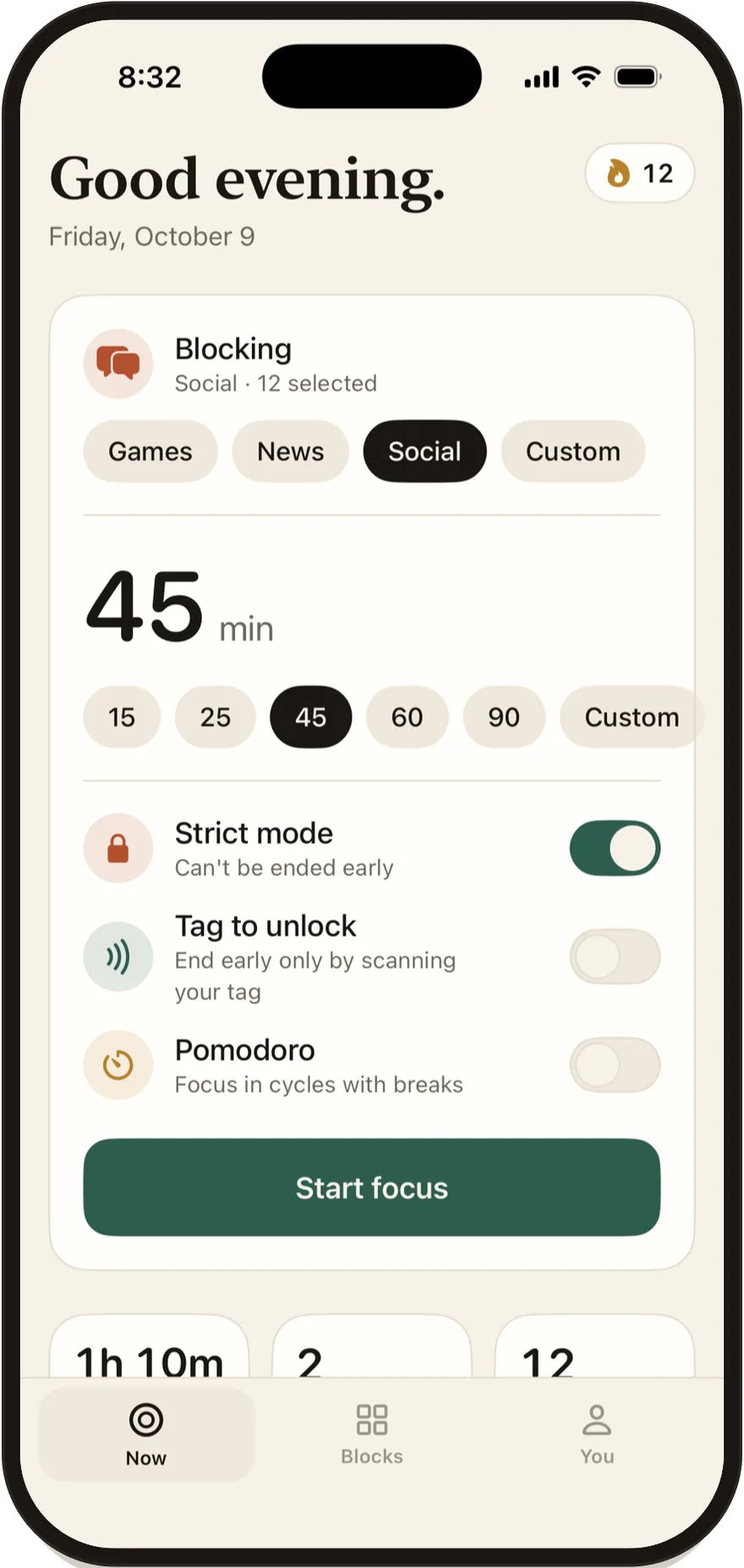
While a session runs, the countdown shows on your Lock Screen and in the Dynamic Island. You can also start sessions from a Home Screen widget, Siri or Shortcuts. When you want blocks that start on their own, add a schedule or a daily limit with Pro, which costs $4.99 a month or $24.99 a year in the US; the yearly plan starts with a 7-day free trial.
FAQ
Can an iPhone app blocker see which apps I use?
Blockers built on Screen Time receive the apps you pick as encrypted tokens, so they can't read which apps they are. What else an app collects varies, so check its App Store privacy label; Stillock's says "Data Not Collected", and it has no account or servers.
Do iPhone app blockers work on iPad?
Some do. Stillock, one sec and ScreenZen run on iPad, while Opal, Brick and Foqos are iPhone only on the App Store (checked November 5, 2026). Unlocking with an NFC tag needs an iPhone, because iPads have no NFC reader.
Can an app blocker block websites on iPhone?
Yes. Blockers that use Screen Time, Stillock included, can block websites as well as apps. In Stillock you pick sites in Apple's Screen Time picker, which lists the sites Screen Time has already seen on your iPhone; you can't type in a domain. Screen Time's own Content & Privacy Restrictions can block any address you type under Never Allow. If you use a browser other than Safari, test a blocked site in it, or add the browser itself to your block group.
Do app blockers drain the battery?
The blocking is done by iOS itself, so a Screen Time based blocker doesn't have to keep running to hold a block. Stillock runs no background tasks of its own; its blocks start and end in system extensions that iOS launches. We haven't measured its battery use, so we won't quote a number, and we know of no impact beyond the Live Activity countdown.
Can I get around an iPhone app blocker?
Yes, always: iOS lets you turn off any app's Screen Time access in Settings or delete the app, and either one removes its blocks. A good blocker removes the easy exits, and a Screen Time passcode held by someone else, plus Deleting Apps set to Don't Allow, makes the remaining ones much harder to use.