Apple's Screen Time is free, built into every iPhone and iPad, and good at daily limits, schedules and content restrictions. Its weak spot is self-control: limits you set for yourself come with an Ignore Limit button. An app blocker like Stillock runs on the same Screen Time engine and adds focus sessions that can't be ended early, NFC tag unlocks and streaks. Many people use both.
Disclosure: We make Stillock. Prices and features of other apps were checked on November 5, 2026 and link to their sources; tell us if something is out of date.
What Apple Screen Time does well
Screen Time deserves more credit than most app blocker websites give it. It's free, needs no download and covers the whole system.
- Free and built in: on iPhone, iPad and Mac, with no subscription and no extra app.
- Daily limits and schedules: App Limits set a daily budget for an app, a category or a website, and Downtime blocks everything except the apps you allow, on a schedule (Apple Support).
- Content & Privacy Restrictions: block app installs and deletions, limit websites and lock down purchases, all behind a passcode (Apple Support).
- Family Sharing: a parent can manage a child's device from their own iPhone.
- New parental tools in iOS 27: Apple says Screen Time in iOS 27 introduces new parental controls, including Time Allowances (a daily time budget across categories), Screen Time Schedules and Ask to Browse, which is on by default for children under 13 (Apple Support, checked November 5, 2026).
If your limits mostly hold, Screen Time may be all you need. Here is how to block apps on iPhone for yourself with nothing but Screen Time.
Where Screen Time falls short for self-control
Screen Time is at its strongest when one person sets the rules and another lives with them. When you set rules for yourself, you are also the person who can lift them.
- Ignore Limit: when your own limit runs out, the Time Limit screen lets you choose One More Minute, Remind Me in 15 Minutes or Ignore Limit for Today.
- One More Minute: even with Block at End of Limit on, people report that the limit screen still offers a minute more (Apple Community).
- A passcode you know: if you set the passcode, you can type it. It only works when someone else holds it.
- No timed sessions: you can't block a set of apps for the next hour, starting now. App Limits are daily budgets and Downtime is a fixed schedule.
- No physical unlock: there's no way to tie the end of a block to an NFC tag in another room.
- Bugs: after iOS 26.2, people reported app limits triggering early in Apple's Community forums and on Apple's developer forums. Stillock runs on the same framework, so it can be affected by the same problems.
There's more on the first three in our guide to Screen Time's Ignore Limit button.
What Stillock adds on top of Screen Time
Stillock uses Screen Time to block, then adds the parts Apple left out for adults who manage their own phone. Some are free; the strict tools are part of Pro.
- Focus sessions (free): block a group of apps, categories and websites for 5 minutes to 3 hours, or work in Pomodoro cycles with short breaks.
- Strict mode (Pro): the session can't be ended early in the app.
- Tag to unlock (Pro): end a session early only by scanning an NFC tag you registered, ideally one you keep in another room. Any ordinary NFC tag works, and the session still ends on its own when its time is up, even if you lose the tag.
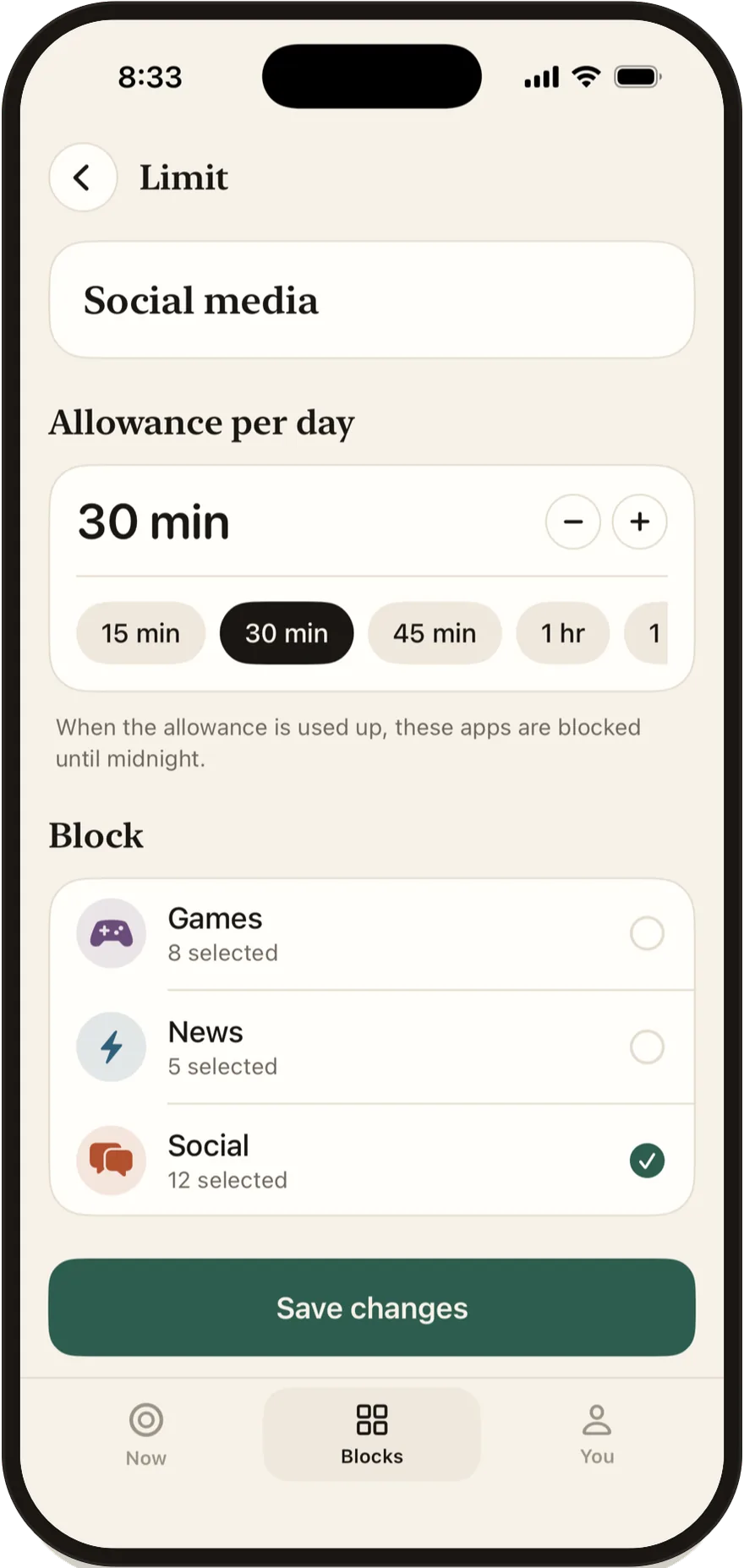
- Daily limits with no ignore button (Pro): for example 30 minutes of social media a day, after which the apps stay blocked until midnight. The blocked screen has no Ignore Limit; the only extra time is "5 more minutes", and you decide in advance how many of those you get per day (one on Free, none to five with Pro), shared across all your blocks. Each one opens a single app, site or category for 5 minutes, and none are offered during strict sessions, tag-locked sessions or strict schedules. The limit itself can still be switched off or edited in the Blocks tab, which takes a few deliberate taps rather than one; limits can't be made strict, only schedules can.
- Schedules and strict schedules (Pro): block a group every day at set times, such as work hours or bedtime. A strict schedule can't be switched off or edited while it runs.
- Focus link (Pro): block a group automatically while an iOS Focus is on. A Focus on its own filters notifications and Home Screen pages; it doesn't block apps.
- Progress you can see: a day streak on every plan, plus streak protection for one missed day a week, insights and a Sunday recap with Pro.
- Always in view: the countdown runs on your Lock Screen and in the Dynamic Island, and a widget, Siri or Shortcuts can start a session.
Stillock also runs free challenges. The first, No-Scroll November, runs from November 7 to 30, 2026: focus for 25 minutes or more on 15 days.
What Screen Time does that Stillock doesn't
Stillock is an app blocker for your own device. Some jobs belong to Screen Time, and it does them well:
- Content restrictions: explicit content, purchases and privacy settings. Stillock blocks apps and websites; it doesn't filter what's inside them.
- Managing a child's device: Screen Time works through Family Sharing. Stillock is made for your own iPhone or iPad, and its terms don't allow using it to restrict someone else's device without their permission.
- Ask to Browse, Time Allowances and Communication Limits: Apple's tools for children and contacts have no counterpart in Stillock.
- The Mac: Screen Time runs on the Mac too. Stillock is for iPhone and iPad only.
- Price: Screen Time is free. Stillock's strict tools cost $4.99 a month or $24.99 a year in the US.
Screen Time vs Stillock at a glance
Checked on November 5, 2026. Stillock's details come from its App Store listing.
| Feature | Apple Screen Time | Stillock |
|---|---|---|
| Price | Free, built in | Free; Pro $4.99/month or $24.99/year, 7-day free trial on yearly |
| Devices | iPhone, iPad and Mac | iPhone and iPad, iOS 17 or later |
| Daily limits | Yes, App Limits | Yes, blocked until midnight once used (Pro); the limit can be switched off in the app, and limits can't be strict |
| Extra time past a limit | Ignore Limit, One More Minute | "5 more minutes": one a day free, none to five with Pro, set in advance |
| Schedules | Downtime | Schedules and strict schedules (Pro) |
| Timed focus sessions | No | 5 minutes to 3 hours, plus Pomodoro (free) |
| Session you can't end early | No | Strict mode (Pro) |
| NFC tag unlock | No | Tag to unlock with any NFC tag (Pro) |
| Website blocking | Yes, any address under Never Allow | Yes, for sites you pick in Apple's Screen Time picker (it lists sites Screen Time has already seen; you can't type in a domain) |
| Content filtering | Yes | No |
| Manage a child's device | Yes, with Family Sharing | No |
| Progress | Usage reports | Day streak; insights and Sunday recap (Pro) |
| Account and data | Part of iOS | No account; Data Not Collected |
Same engine, same privacy
Stillock doesn't replace Screen Time; it runs on it. Blocking is done by Apple's Screen Time framework (FamilyControls), the same system behind App Limits. iOS gives Stillock your chosen apps as encrypted tokens, so neither the app nor we can see which apps you block.
There's no account, no servers, no analytics, no ads and no tracking, and the App Store privacy label says "Data Not Collected". The screen time numbers Stillock shows are measured on your device and stay there. Our privacy policy has the details.
The flip side of running on Screen Time: turning off Stillock's Screen Time access in Settings, or deleting the app, removes all of its blocks. iOS allows that for every app, and we would rather tell you than pretend otherwise.
Limitation: Neither Screen Time nor Stillock can create a block on your own iPhone that you can't undo. Stillock's strict mode and Tag to unlock remove the one-tap exits, but the way out through Settings always exists. Read how strict an app blocker can be on iPhone for what helps beyond that.
Is Screen Time enough, or do you need an app blocker?
Screen Time alone is enough if:
- your limits mostly hold and you rarely tap Ignore Limit;
- you mainly want content restrictions or to manage a child's device;
- you don't want to pay anything.
Add an app blocker like Stillock if:
- you dismiss your own limits on reflex;
- you want focus sessions for work or study with a clear end;
- you want a block that ends only on the timer, or with a tag you keep in another room.
If you want to look beyond Stillock, our guide to app blockers for iPhone compares it with Opal, one sec, Brick and Foqos.
A setup that uses Screen Time and Stillock together
You don't have to choose. The two work well side by side:
- Let Screen Time guard the doors. In Content & Privacy Restrictions, set Deleting Apps to Don't Allow, and ask someone you trust to set the Screen Time passcode. Freedom's support documentation reports that on iOS 26.4 or later, that passcode is also required to turn off any app's Screen Time access.
- Let Stillock handle the hard hours. Use strict sessions for focused work and a daily limit on the apps you overuse, such as 30 minutes of social media.
- Put your tag somewhere inconvenient. With Tag to unlock, keep the NFC tag in another room, so ending early means getting up.
- Keep the essentials open. Never block apps you might need in an emergency, such as messaging, maps, health or sign-in apps.

Stillock is free to download. The strict tools come with Pro, and the yearly plan starts with a 7-day free trial.
FAQ
Is Apple Screen Time enough to cut down on scrolling?
For some people, yes. If you rarely tap Ignore Limit, Screen Time's App Limits and Downtime are free and work well; if you dismiss your own limits on reflex, you need a block without a dismiss button.
Do I need an app blocker if I already use Screen Time?
Only if Screen Time's limits aren't holding for you. An app blocker like Stillock adds focus sessions, a strict mode that can't be ended early in the app and NFC tag unlocks, while still using Screen Time to do the blocking.
Can I use Stillock and Screen Time at the same time?
Both can be on at the same time. Stillock keeps its own Screen Time settings next to your App Limits, Downtime and Content & Privacy Restrictions, and an app stays blocked while either tool blocks it. We haven't tested every combination with App Limits and Downtime, so start with one or two overlapping rules and see how they behave on your iPhone.
Does Stillock collect more data than Screen Time?
Stillock's App Store privacy label says "Data Not Collected". It has no account and no servers, and iOS gives it your chosen apps as encrypted tokens it can't read.
Can Stillock manage my child's iPhone?
No. Stillock asks iOS for individual Screen Time authorization only, so it can't manage another person's device through Family Sharing; for a child's device, use Screen Time with Family Sharing.