No. On a normal iPhone, no app blocker is impossible to bypass, because iOS always leaves a way to remove a blocker's restrictions: in Settings, or by deleting the app. What you can do is make every exit slow and deliberate. Strict mode, a Screen Time passcode someone else holds, no app deletions and an NFC tag in another room come close.
That is the honest answer, and it is also the useful one. Most people don't need a lock that can never open. They need the two-second exits gone, so the urge passes before they get around the block.
Why no iPhone app blocker is 100% unbypassable
Every app blocker on the App Store, Stillock included, works through Apple's Screen Time frameworks. You give the app Screen Time access, you pick the apps, and iOS does the blocking. In Stillock's case, iOS hands the app your choices as encrypted tokens, so the app can't even see which apps you blocked.
Because iOS does the blocking, iOS also keeps the off switch. You can turn off an app's Screen Time access in Settings or delete the app, and its blocks are gone. Stillock's own FAQ and terms say this plainly. So on an App Store blocker, "can't be bypassed" really means "can't be bypassed quickly". A page that promises more is overselling.
The five ways around an iPhone app blocker
These are the escape hatches every blocker has, and what closes or slows each one.
| Escape hatch | How it works | How to close or slow it |
|---|---|---|
| End the session in the app | Tap stop when the urge hits | Strict mode, or Tag to unlock with the tag in another room |
| Turn off Screen Time access | Switch off the blocker's access in Settings > Screen Time | A Screen Time passcode someone else holds (iOS 26.4 and later, reported) |
| Delete the blocker | Remove the app; its blocks go with it | Content & Privacy Restrictions: Deleting Apps set to Don't Allow |
| Use the website | Open the same service in Safari or another browser | Block the website in the same group, or use Screen Time's website restrictions |
| Use another device | Pick up the iPad, the laptop or someone else's phone | Set up blocks on your iPad too; keep other screens out of the room |
The sections below go through them in order, from the easiest exit to close to the hardest. If you haven't set up any blocks yet, start with our guide to blocking apps on iPhone for yourself.
Strict mode: what it locks and what it can't
Strict mode (Pro) removes the first escape hatch. Once a strict session starts, it can't be ended early in the app. It runs until its timer ends, anywhere from 5 minutes to 3 hours, with the countdown on your Lock Screen and in the Dynamic Island. "5 more minutes" is not available during a strict session either.
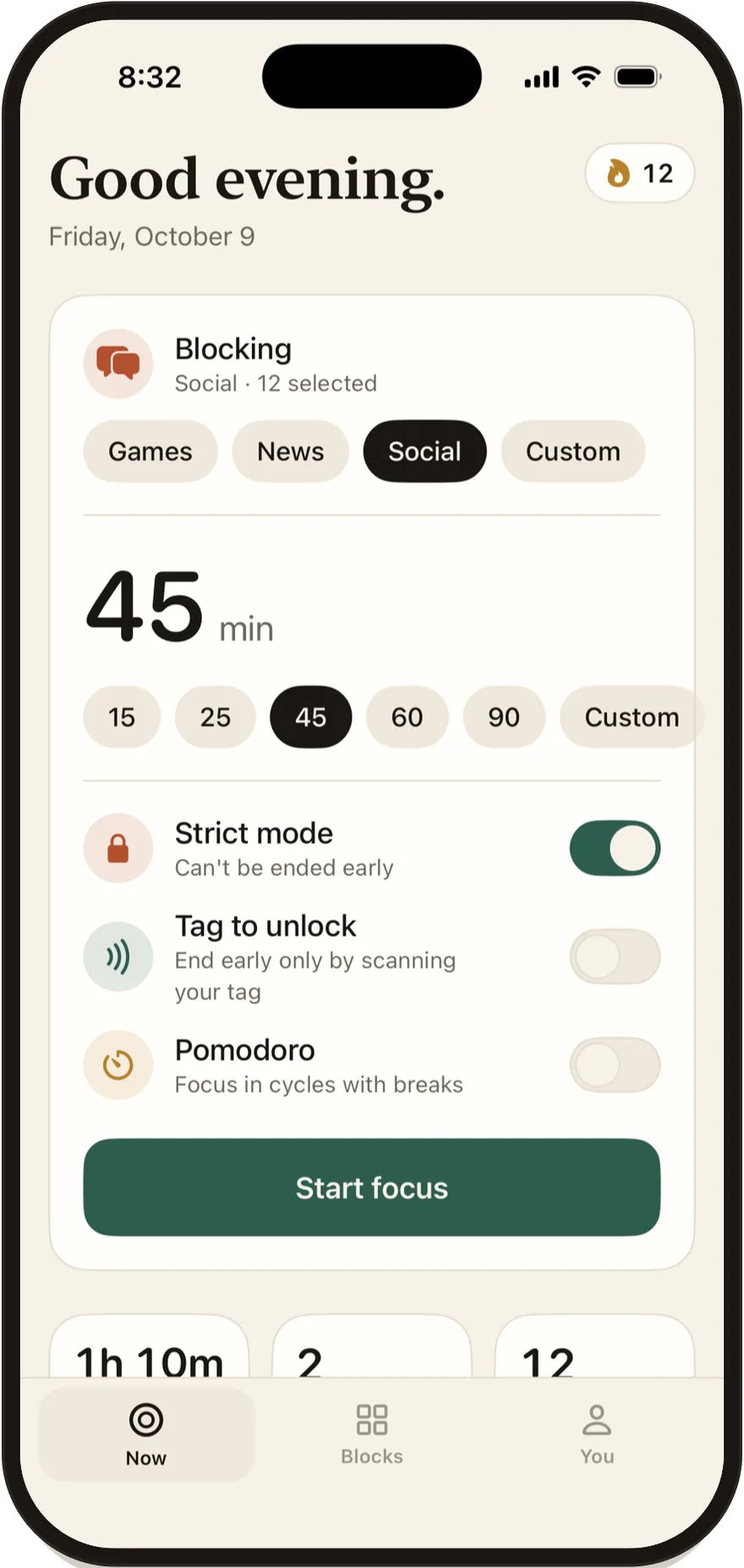
What strict mode can't do is stop iOS. If you turn off Stillock's Screen Time access in Settings, Stillock's privacy policy says this removes all of its blocks, and that includes the apps locked by a running strict session. Deleting the app does the same. Stillock doesn't notice the switch: the session keeps counting down and is saved like any other, and if you turn access back on before the end time, the blocks don't come back on their own.
That is why strict mode works best together with the next two steps, which protect the Settings switch and the delete button.
Lock the permission itself with a Screen Time passcode (iOS 26.4 and later)
Freedom's support documentation (checked November 5, 2026) reports a change in iOS 26.4: once a Screen Time passcode is set, that passcode is required to turn off Screen Time access for any app. We have not found the same statement in Apple's own documentation, so treat it as a reported change. If it applies on your iPhone, a passcode closes the second escape hatch for every blocker you use.
The passcode only helps if you don't know it:
- Hand your iPhone to someone you trust.
- They open Settings > Screen Time > Lock Screen Time Settings and set a passcode without showing you.
- They keep it somewhere you can't reach without asking them.
- Test it: in Settings > Screen Time, try to switch off your blocker's access. On iOS 26.4 or later, iOS should ask for the passcode.
The cost is real. You will need that person for every Screen Time change, including the sensible ones. If you set the passcode yourself, it slows you down for a few seconds and nothing more. Our guide to Screen Time's "Ignore Limit" button explains why a passcode you know rarely holds.
Stop deleting and reinstalling apps
Deleting the blocker is the third escape hatch, and reinstalling a deleted app is a cousin of it. Screen Time's Content & Privacy Restrictions can turn off both.
- Open Settings > Screen Time > Content & Privacy Restrictions and turn it on.
- Tap iTunes & App Store Purchases.
- Set Deleting Apps to Don't Allow.
- If you tend to reinstall apps or switch to another browser, set Installing Apps to Don't Allow as well.
With the passcode in someone else's hands, these switches are protected too. Plan ahead: installing a new app means asking for the passcode. Apple's guide to blocking apps and content on iPhone covers the rest of these restrictions.
Add physical friction with Tag to unlock
Strict mode has no way out in the app at all. If that feels too hard, Tag to unlock (Pro) gives you exactly one: during a session, you can end it early only by scanning an NFC tag you registered. Keep the tag in another room, in the car or at work, so ending early means getting up and walking.
Any ordinary NFC sticker, card or key fob works, such as the common NTAG213, NTAG215 and NTAG216 types, and there is no special hardware to buy. Bank cards and most transit cards won't be read, so use a plain tag.
If you lose the tag, nothing is stuck: every session and schedule ends on its own when its time is up. iPads have no NFC reader, so the tag is an iPhone feature: on an iPad the switch is shown, but no tag can be registered, so a tag-locked session can't be started there.
Our NFC app blocker guide covers which tags to buy and where to put them, and the Brick alternative comparison shows how a sticker compares with a dedicated device.
The strictest realistic setup, as a checklist
This is the closest you can get to "can't be bypassed" on your own iPhone without handing it to someone else.
- Put the apps that pull you in into a Stillock block group, and add their websites to the same group. Apple's picker offers the sites Screen Time has already seen on your iPhone, so visit a site once before you look for it there.
- Block that group on a strict schedule for the hours you never want it, for example 10 p.m. to 7 a.m. Strict schedules can't be switched off or edited while they run.
- For focused work, start sessions with strict mode on, or turn on Tag to unlock and leave the tag in another room.
- With Pro, set unlocks per day to none, so there is no "5 more minutes" to fall back on.
- Have someone else set your Screen Time passcode. On iOS 26.4 and later, this reportedly protects Stillock's Screen Time access.
- In Content & Privacy Restrictions, set Deleting Apps to Don't Allow.
- If you reinstall apps or switch browsers, set Installing Apps to Don't Allow.
- Set up Stillock on your iPad too. There is no account, so each device keeps its own blocks.
- Leave messaging, maps, health and sign-in apps out of every group.

What is left after this: asking the person who holds the passcode, using a device you didn't lock down, or waiting for the timer. For most people, that is enough friction for the urge to pass. If you want to compare this with what Apple's tools do on their own, see Stillock vs Screen Time.
When strict is too strict
A setup you can't live with is one you will tear down within a week. Build in the right exits on purpose.
- Emergencies. Never block apps you might need in an emergency: messaging, maps, health and sign-in apps. Stillock's terms say this too.
- Time ends everything. Every session and schedule ends on its own when its time is up, so the worst case is waiting.
- "5 more minutes". The free version gives you one a day; with Pro you choose from none to five. It is not available during strict sessions, tag-locked sessions or strict schedules, so it works as a release valve for daily limits and ordinary sessions.
- A streak that forgives. With Pro, your streak protects one missed day a week, so one bad day doesn't wipe out a month.
- Start shorter. Run strict 25-minute sessions before you commit to 3-hour ones.
If you are new to blockers in general, our overview of how app blockers for iPhone work is a good place to start.
Limitation: Stillock can't stop iOS from removing its blocks. Turning off its Screen Time access in Settings or deleting the app removes all of them, and only a Screen Time passcode you don't know (iOS 26.4 and later, as reported by Freedom's support documentation) or a deletion restriction stands in the way.
FAQ
Is there an iPhone app blocker that can't be bypassed?
No app from the App Store is impossible to bypass on a normal iPhone, because iOS lets you turn off a blocker's Screen Time access or delete it. The closest setup combines strict mode, a Screen Time passcode someone else holds and a restriction on deleting apps.
Can I delete Stillock during a strict session?
Yes, unless Deleting Apps is set to Don't Allow in Screen Time's Content & Privacy Restrictions. Deleting Stillock removes all of its blocks, so set that restriction if deleting is your usual way out.
What happens if I turn off Stillock's Screen Time access during a strict session?
Stillock's privacy policy says turning off its Screen Time access removes all of its blocks, including those of a running strict session. The app doesn't detect the change: the session keeps counting down and is saved like any other, and the blocks aren't put back if you turn access on again before the end. On iOS 26.4 and later, Freedom's support documentation reports that this switch needs the Screen Time passcode if one is set.
Do I need a Screen Time passcode for strict mode to work?
No. Strict mode stops you from ending a session in the app without any passcode. A passcode someone else holds adds protection for the Settings switch and the delete button.
What if I lose my NFC tag?
Every Stillock session and schedule ends on its own when its time is up, even if you lose your tag. You can also remove all of Stillock's blocks by turning off its Screen Time access in Settings or by deleting the app. Once the session has ended, register a new tag in Settings under Unlock tag (Replace, or Forget tag and then Register). Only one tag can be registered at a time, and it can't be changed while a tag-locked session is running.