Screen Time has no switch that removes "Ignore Limit" or "One More Minute" from a limit you set for yourself. The closest fix is "Block at End of Limit" plus a Screen Time passcode, and it only holds if someone else knows the passcode. To stop yourself without help, use a daily limit with no ignore button that keeps the apps blocked until midnight.
This guide is for adults who set limits on their own iPhone or iPad. The settings are the same ones parents use, but the problem is different when the person tapping the button is you.
What happens when you hit a Screen Time limit
When an App Limit runs out, opening the app shows a limit screen with an "Ignore Limit" button. Tap it and iOS offers three ways to keep going:
| Option | What you get |
|---|---|
| One More Minute | A minute to finish what you were doing |
| Remind Me in 15 Minutes | Fifteen more minutes, then the limit screen again |
| Ignore Limit for Today | The app for the rest of the day |
Unless "Block at End of Limit" is on and a passcode is set, none of these asks for anything. TechLockdown's walkthrough (updated June 4, 2026) describes the same thing: one tap on "Ignore Limit" and you can skip the limit for the rest of the day with no confirmation.
That design makes sense for a reminder. It fails as a commitment, because the person deciding at the limit screen is the same person who wanted to keep scrolling, at the moment they want it most.
How to turn on "Block at End of Limit" with a Screen Time passcode
"Block at End of Limit" turns a reminder into a block. With it on, the limit screen no longer offers "Ignore Limit for Today". You get one more minute, and after that the app asks for the Screen Time passcode.
- Open Settings > Screen Time > Lock Screen Time Settings and set a passcode.
- Go back to Screen Time and tap App Limits > Add Limit.
- Choose the apps or categories, tap Next and set the time.
- Turn on "Block at End of Limit" and tap Add.
Two details trip people up. First, the switch only appears once a Screen Time passcode is set, according to the same TechLockdown guide. Second, that guide advises checking the switch again each time you change the limit or the passcode. So after any edit, open the limit and make sure "Block at End of Limit" is still on. Apple's own steps are in its guide to setting schedules and limits in Screen Time.
Can you turn off "One More Minute"?
No. iOS has no setting that removes it, and an Apple Community thread asking how to disable it ran to at least eight pages without a built-in fix (checked November 5, 2026). The minute exists so you can send the message you were typing or save your work.
What you can do instead:
- Accept the minute. One minute is rarely what wrecks an evening. "Ignore Limit for Today" is.
- Keep the passcode out of your own hands, so the minute is the only extra time you can get.
- Use a limit that counts extra time in advance. Some blockers let you decide, while you are calm, how many extra unlocks you get per day. Stillock's version is described below.
Why Screen Time limits fail when you know the passcode
The Screen Time passcode protects your settings from other people. It does nothing against you. If you set it, you can type it at the limit screen and approve more time, or open Settings and raise or delete the limit.
The usual workarounds leak in predictable ways:
- A passcode you plan to forget. You remember it, or you write it down somewhere you can find.
- A random passcode in a sealed note. It works until the evening you open the note.
- A limit on the app only. The website version is a separate thing. Blocking the Instagram app does not stop instagram.com in Safari unless you limit or block the site too.
There is a deeper reason, too. A limit you can dismiss turns every evening into a negotiation, and you hold it at the worst possible moment: tired, bored and already halfway into the feed. A limit works when the decision was made earlier and the exit takes real effort. Our guide to blocking apps on iPhone for yourself covers the full set of native methods.
iOS 26.2: Screen Time limits triggering early (user reports)
Since iOS 26.2, people have reported limits firing too early, sometimes before they had used the app at all. These are user and developer reports. As of November 5, 2026, we found no fix confirmed by Apple.
- An Apple Community thread titled "App Limit bug in ios 26" (posted February 7, 2026) describes limits kicking in whenever the iPhone charges, even for apps the poster barely used. The poster said it was still happening on iOS 26.3 later that month.
- An Apple Developer Forums thread started in January 2026 reports that Apple's DeviceActivity framework, which screen time apps use to track usage, signals "limit reached" early after iOS 26.2, sometimes at zero minutes. A recent reply in the same thread says it still happens on iOS 27.
- Roots, another app blocker, published a help article titled "iOS 26.2 known issue: time limits triggering early".
Third-party blockers rely on the same Apple frameworks, so a bug like this can affect them as well. Stillock's daily limits use the same usage thresholds, one per limit covering the whole group, so we don't claim they are immune.
If a limit fires early on your device, it is not something you set up wrong. Keep iOS up to date and note when it happens, so you can tell a bug from a real limit.
iOS 27: what changed for adults
iOS 27 arrived in September 2026 with reworked Screen Time controls, including Time Allowances and a Screen Time Schedule, aimed at parents managing a child's device (AppleInsider, June 8, 2026; AP via BNN Bloomberg, September 24, 2026). A review of the changes on habitdoom, a rival app's blog (checked November 5, 2026), notes that adults can still dismiss their own limits with "Ignore Limit".
In other words, the problem on this page did not go away with the update. If you set the passcode, you can still give yourself more time.
Fixes that make a Screen Time limit hold
1. Let someone else hold the passcode
Ask a partner, roommate or friend to type a Screen Time passcode you don't know, then turn on "Block at End of Limit" for your limits. This is the strongest free option. The cost is that you need them for every change, including the reasonable ones. On iOS 26.4 and later, the same passcode reportedly also guards other apps' Screen Time access; our guide to an app blocker you can't easily bypass explains that change and its source.
2. A daily limit with no ignore button
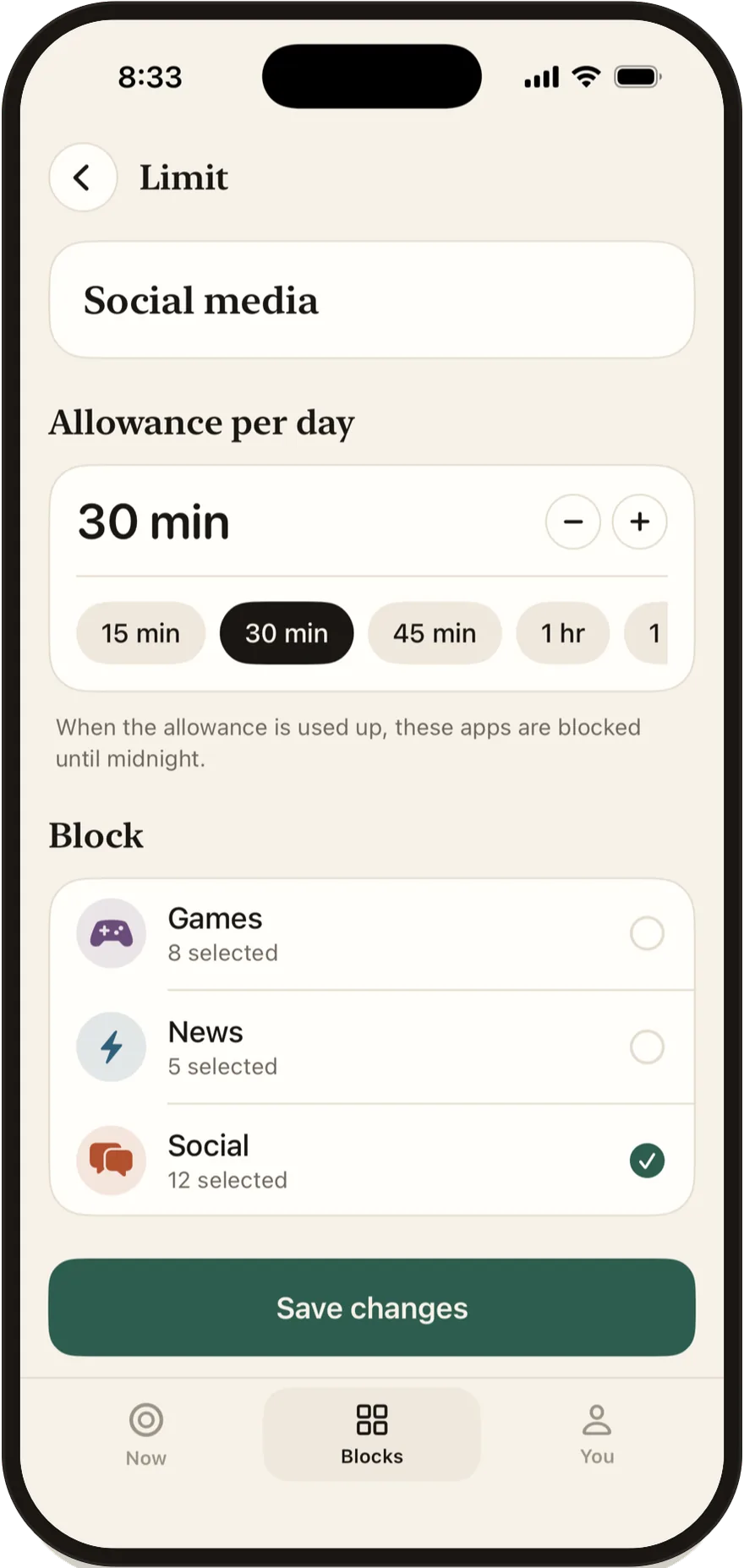
Stillock's daily limits (Pro) let you allow yourself, for example, 30 minutes of social media a day. When the time is used up, the apps stay blocked until midnight. The blocked screen shows the limit's name, "Until midnight" and how many unlocks you have left today, with two buttons: Close and, while unlocks remain, "5 more minutes". There is no "Ignore Limit", no "Remind Me in 15 Minutes" and no "Ignore Limit for Today".
Be clear about what this does and doesn't lock. The blocked screen has no ignore button, but the limit itself isn't sealed: in the Blocks tab you can switch it off, delete it or change the allowance before midnight, and any of those lifts the block right away (editing it also resets today's count). Only schedules can be made strict; limits can't. What Stillock removes is the one-tap exit at the moment of temptation, not the deliberate trip into the app's settings.
To set one up:
- Install Stillock and allow Screen Time access when it asks.
- On the Blocks tab, create a block group with the apps, categories or websites you want to limit.
- Tap the plus button, choose New limit, give it a name such as "Social", and set the Allowance per day in 5-minute steps (the chips offer 15, 30, 45, 60, 90 and 120 minutes). Under Block, pick the group, then tap Create limit.
- In the Settings tab, open Unlocks per day and set it to none if you want no extra time at all; Pro allows none to five, and the count is shared by all your blocks for the day.

Pro costs $4.99 a month or $24.99 a year in the US, and the yearly plan starts with a 7-day free trial. If Pro ends, your daily limits pause; nothing is deleted.
3. "5 more minutes", once a day by design
Stillock does have a way to get a little time back, on purpose. It is called "5 more minutes", and it is offered on the blocked screen of a used-up daily limit as long as you have unlocks left today. The free version gives you one a day. With Pro you choose your unlocks per day, from none to five. Each unlock opens only that one app, site or category for 5 minutes, and none are offered while the same app is also blocked by a strict session, a tag-locked session or a strict schedule.
The difference from "Ignore Limit for Today" is when you decide. You set the number in advance, in a calm moment, and once it runs out, it is gone until tomorrow.
4. Strict blocks for the hours you never want the apps
A daily limit decides how much. A schedule decides when. If evenings are the problem, block the group from 10 p.m. to 7 a.m. as well, and make it a strict schedule so it can't be switched off while it runs. Our guide to blocking apps at certain times has ready-made schedules.
| Screen Time App Limit | Stillock daily limit | |
|---|---|---|
| Extra time at the limit | "One More Minute", "Remind Me in 15 Minutes", "Ignore Limit for Today" (passcode needed only with "Block at End of Limit") | "5 more minutes": one a day on Free, none to five a day on Pro, set in advance |
| After the limit | A reminder you can dismiss; with "Block at End of Limit", blocked until someone types the passcode | Blocked until midnight |
| Price | Free, built into iOS | Pro: $4.99 a month or $24.99 a year (US) |
| Can it be removed? | Yes, with the passcode | Yes: switch the limit off, delete it or edit it in the Blocks tab, or turn off Stillock's Screen Time access. Limits can't be made strict; only schedules can |
For a broader side-by-side, see Stillock vs Screen Time.
Limitation: No app on iPhone makes a limit impossible to skip. iOS always lets you turn off an app's Screen Time access in Settings or delete the app, and either one removes all of Stillock's blocks. A daily limit with no ignore button makes the easy exit disappear; the hard exits are still there.
If you are new to app blockers in general, start with our overview of how app blockers for iPhone work.
FAQ
How do I remove "Ignore Limit" from Screen Time?
You can't remove the button directly. Set a Screen Time passcode, then turn on "Block at End of Limit" for the limit; the limit screen then asks for the passcode instead of letting you ignore the limit for the day.
Can I turn off "One More Minute" in Screen Time?
No. iOS has no setting for it. The minute comes before the passcode prompt when "Block at End of Limit" is on, and the only way to make it the last extra time you get is to let someone else hold the passcode.
Why is "Block at End of Limit" missing or switched off?
The switch only appears when a Screen Time passcode is set. Guides such as TechLockdown's also advise checking it again after you change a limit or the passcode, so open the limit after every edit.
Why do my Screen Time limits trigger early on iOS 26?
Since iOS 26.2, users and developers have reported limits firing early, in Apple Community threads and the Apple Developer Forums. As of November 5, 2026, we found no fix confirmed by Apple, so keep iOS updated and treat early blocks as a system issue.
Does Stillock's daily limit have an "Ignore Limit" button?
No. When a Stillock daily limit (Pro) is used up, the blocked screen offers only Close and, while you have unlocks left, "5 more minutes", which you can set from none to five a day with Pro. The apps stay blocked until midnight.
Can I still get around a Stillock daily limit?
Yes, if you really want to. In the Blocks tab you can switch the limit off, delete it or raise the allowance, and iOS lets you turn off Stillock's Screen Time access in Settings or delete the app. Stillock makes the quick, thoughtless exit go away, not every exit; for hours that must hold, use a strict schedule instead.